

Recording Time
In and Outs of Recording time.
The output, at least the time part of it, ends up logged onto the Work log. Jira's version of a punch card entry, digital style. Your admin, project lead, etc should have your project set up to tally up the time entered into the Work log to record on the ticket.If not, well that is okay, but not in a negative way. Because you'll find out that Work Pulse tabulates it for you. And can generate a weekly report you can output and send to, well whoever needs to see it.
We will first talk about the tools on the Work Pulse page for your to use to record, track, and report your time with.
Timers
In standard, your organization get 300 automatic timers, stopwatches if you will, to kick off when you start your work on a task. They reset each month. But you do have to share them with your teammates.In the top left corner, there is a block showing the pool and how many are left.
Look below to see how it looks when one is running. You have two places to view them.
- The obvious one at the top of the app
- and the other is in the ticket card after the Converse button

What happens when ...
- When you close the browser with a timer running?
- The timer is lost
- What happens when you click pause?
- The timer is still active, waiting for you to restart it or stop it all together.
- What happens when you click stop?
- A job is fired off to jira recording your time in the worklog of the ticket.
- The time is also logged in the ticket block on Work pulse and added to the project total
- Also time is added to your weekly time bar.
- What happens when I start another timer?
- You can't while one is up and running or paused. You must first stop the existing timer
- Standard edition regulates how many you can run at a time
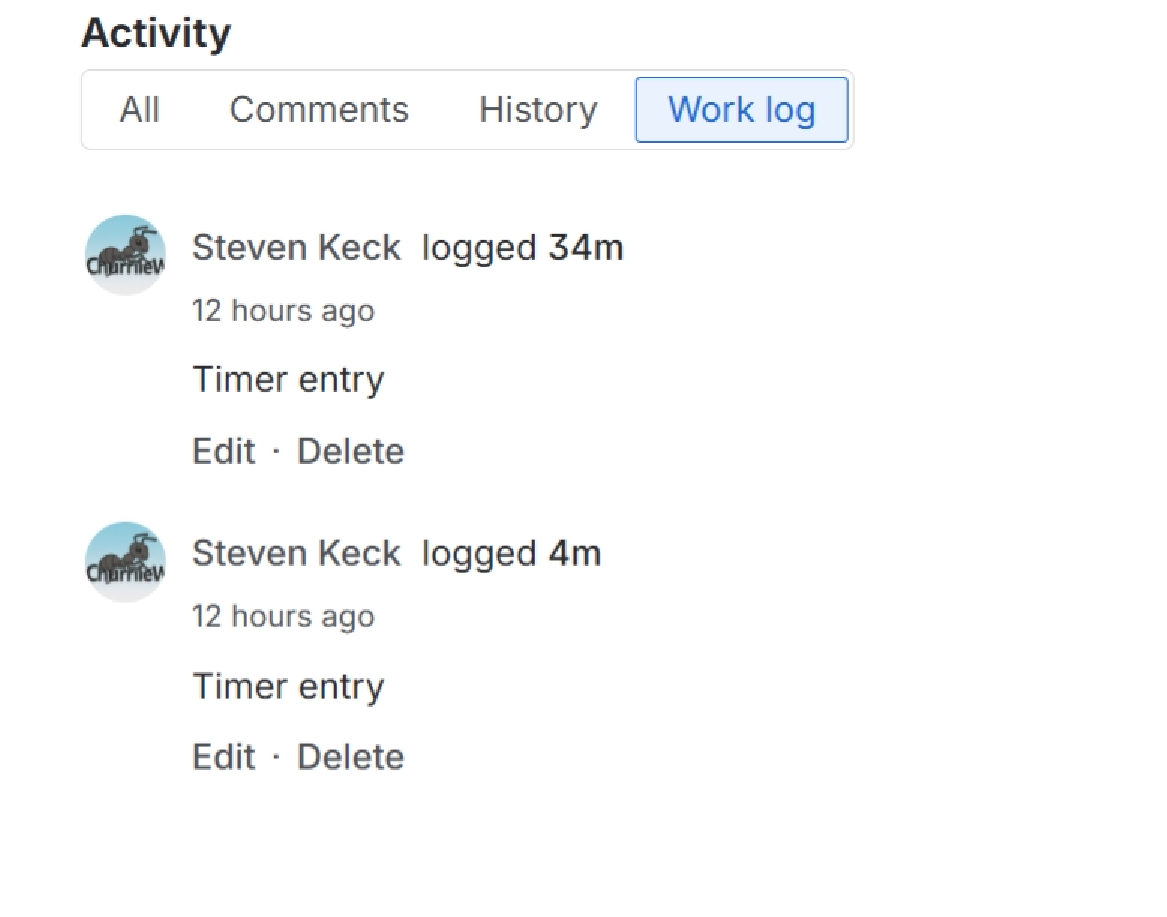
Your Jira ticket allows for Work log entries because, well, often we can't work on a ticket consistently. This is where your Work Pulse time entries go.
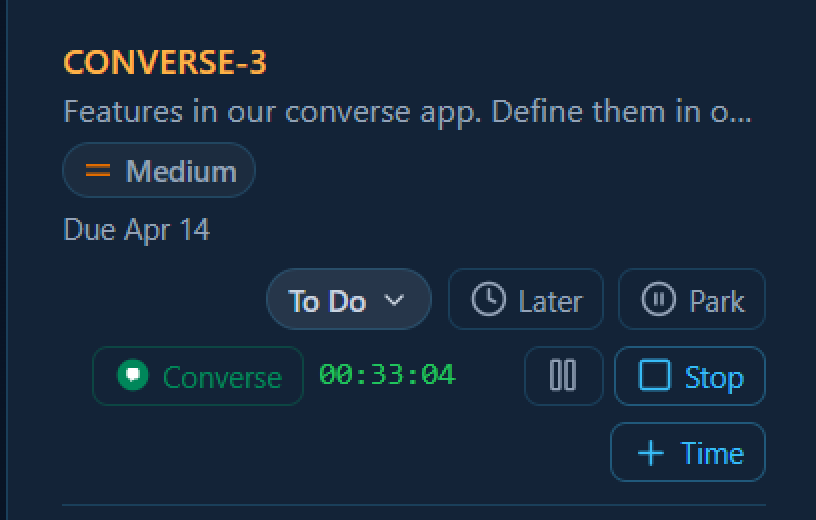
When you click Timer ...
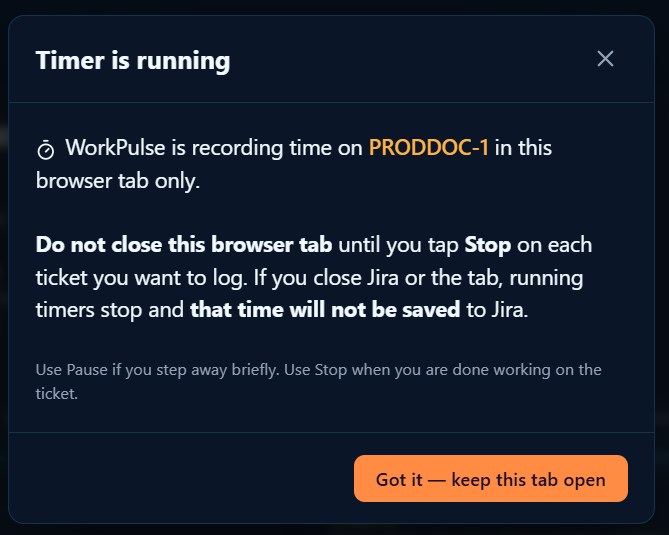
A reminder to not close the browser pops up.
Click it and the timer appears at the top of the app page, and starts running in the ticket card.
+Time button
Click here to understand the +Time button.