

Greenlight Approval macro
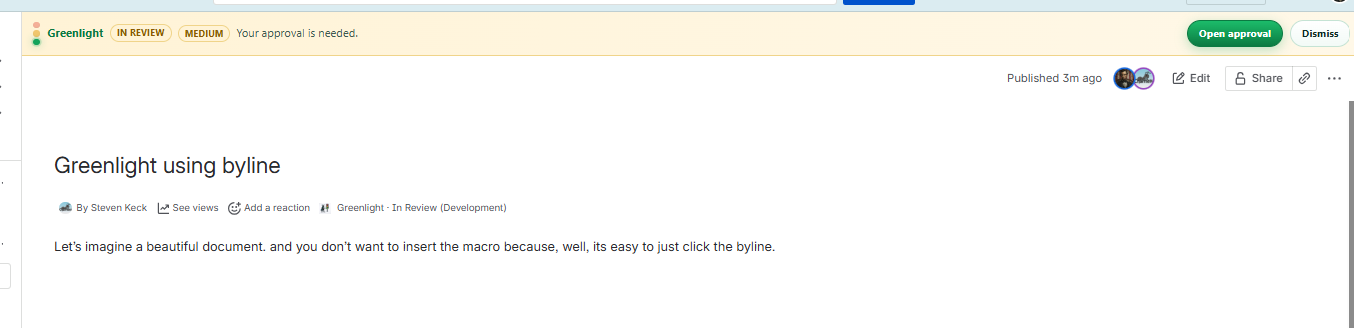
The optional Greenlight Approval macro puts status and review actions right in the page body — so reviewers can work without opening the byline panel. When the owner clicks Publish in Greenlight, the macro is removed automatically.
How it fits with the banner
- No macro — while In Review / Approved / Rejected, Greenlight shows a page banner with Open approval
- Macro on the page — the banner stays hidden so you only see one control surface
- The byline (Greenlight · {state}) still works either way
Insert the macro
-
Finish the document first
Write your content, then scroll near the top of the page where reviewers will see the control easily.
-
Type
/and choose Greenlight ApprovalIn the editor, type
/gree(or/and search) and select Greenlight Approval.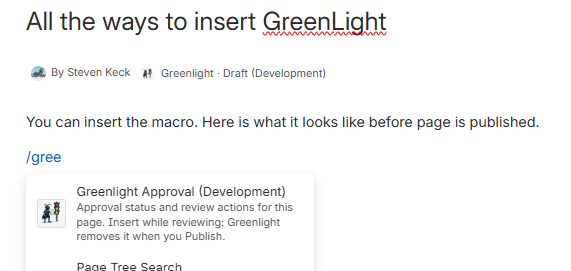
-
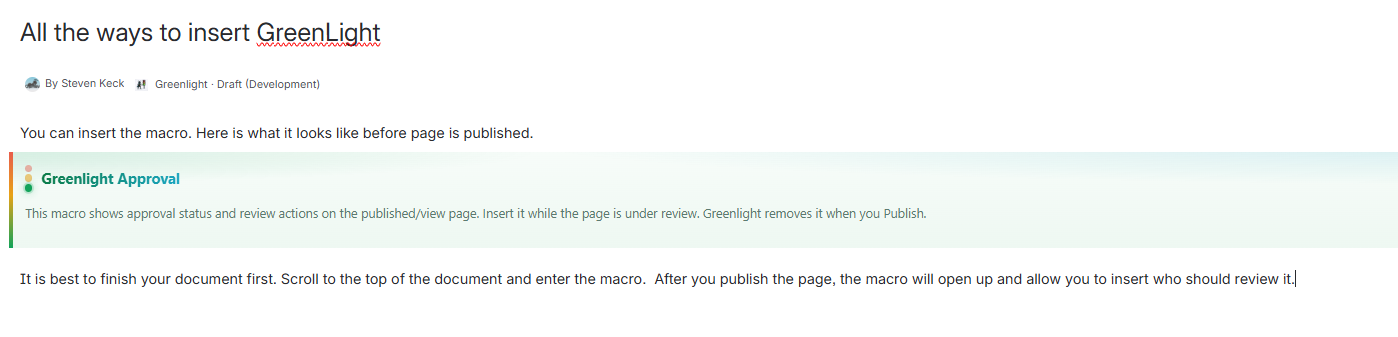
While editing, you see a placeholder
In edit mode the macro shows a short placeholder: it displays status and review actions on the published/view page, and Greenlight removes it when you Publish.
-
Publish the Confluence page
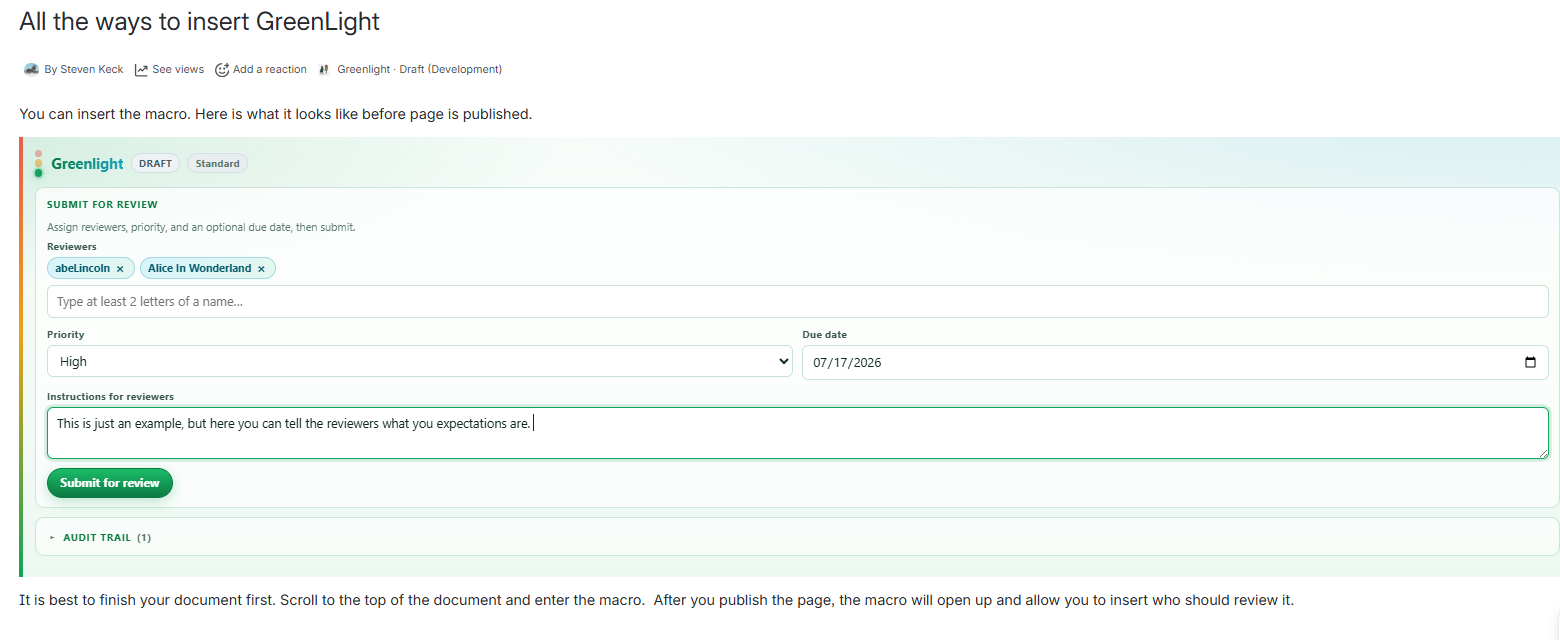
After Confluence publish, the macro opens fully so you can assign reviewers and submit.
Submit, review, and publish from the macro
-
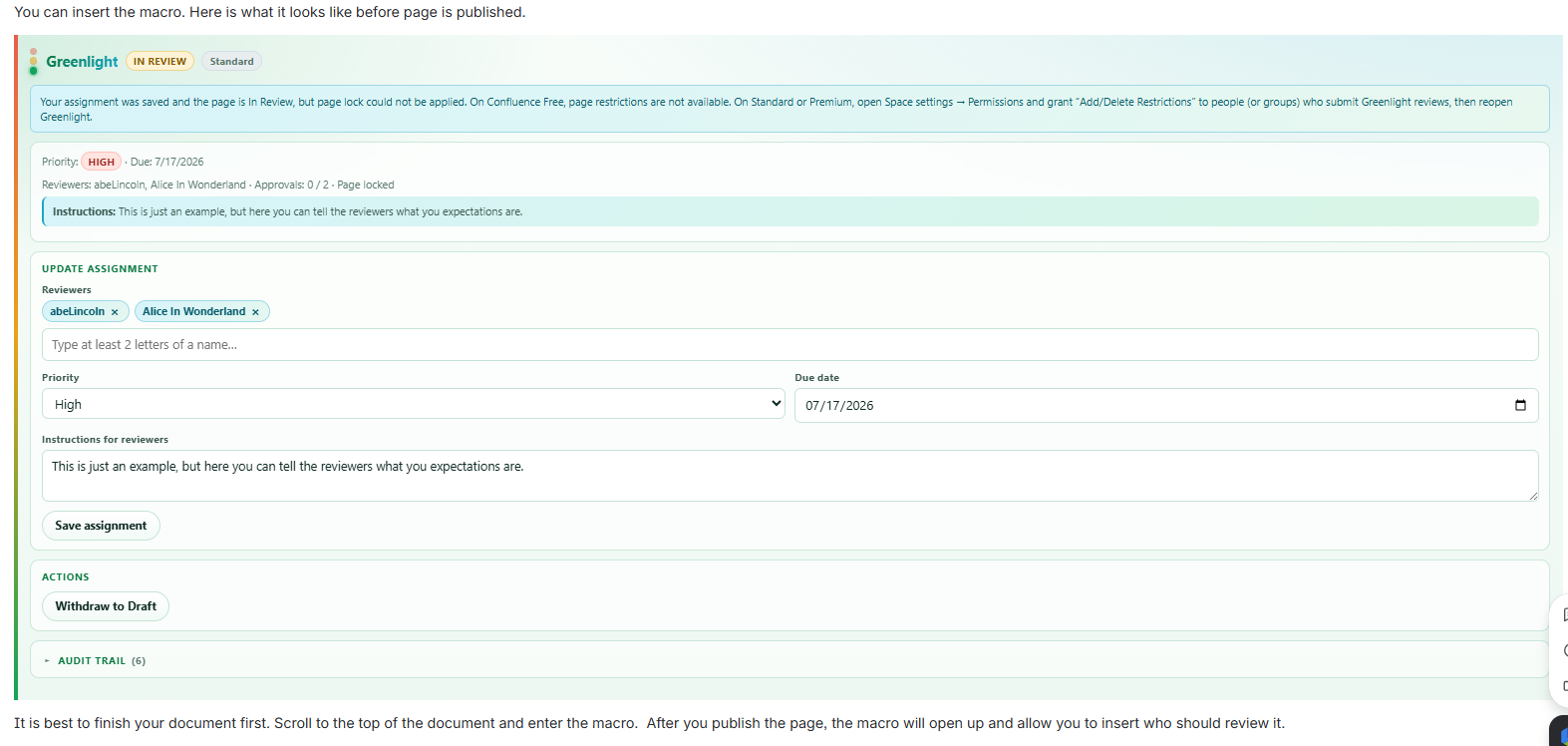
Submit for review
Pick reviewers, priority, due date, and instructions, then Submit for review. The macro shows In Review, assignment, and the audit trail.
-
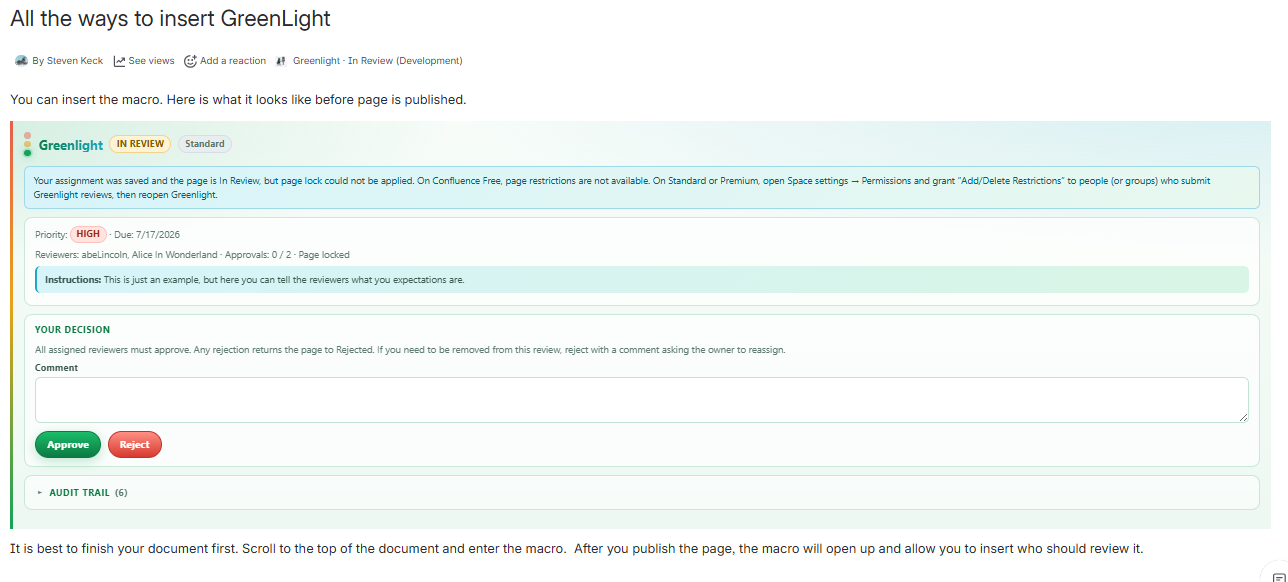
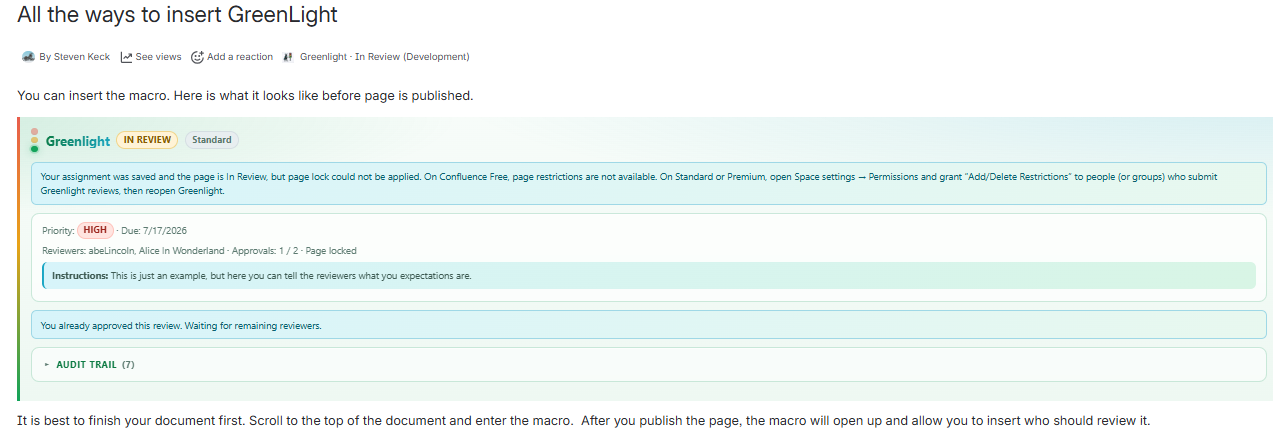
Reviewers decide in the macro
Reviewers open the page (from the @mention comment or byline), scroll to the macro, and Approve or Reject with a comment. Notifications still tell them to use the byline or the macro.
-
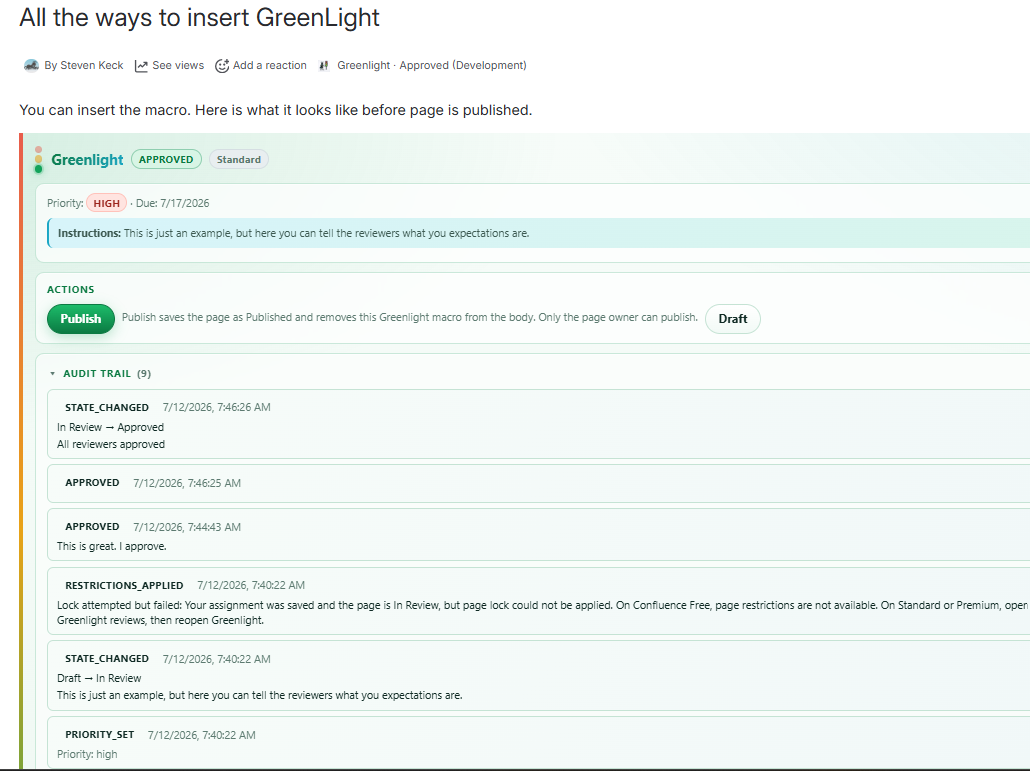
Owner Publishes — macro is removed
When all reviewers have approved, only the page owner can click Publish. Greenlight moves the state to Published, clears review restrictions, and strips the Greenlight Approval macro from the page body.

Quick rules
| Topic | Behavior |
|---|---|
| Required? | No — byline + banner cover the same workflow. |
| When to insert | While the page is under review (or before submit). |
| Banner | Hidden whenever the macro is present on the page. |
| Who Publishes | Page owner only; Publish also removes the macro. |
| Reject / withdraw | Same rules as the byline panel. |