Feature summary
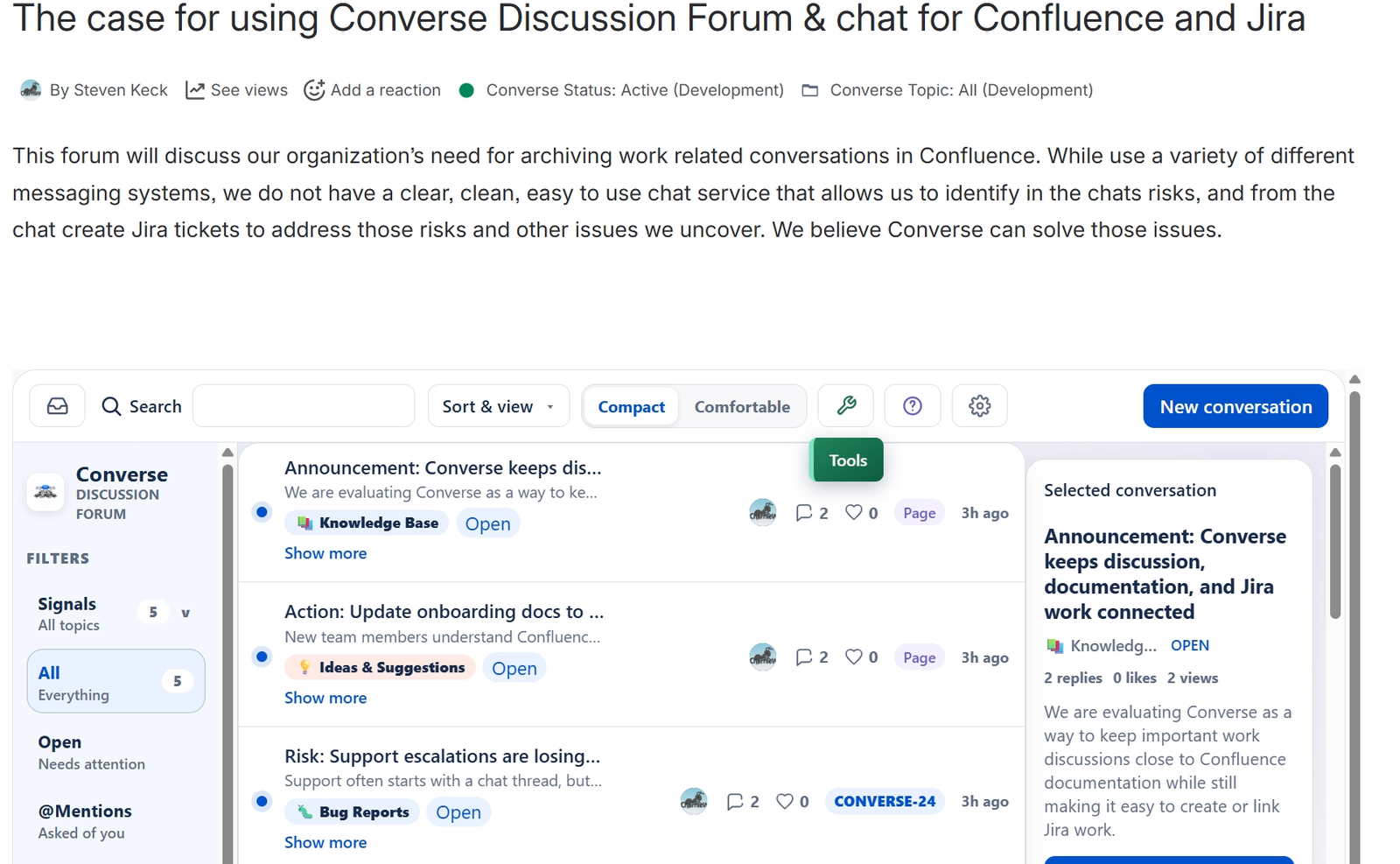
The Hub displays a list of conversations cards. But each conversation has a lot of rich features to facilitate the conversation and help move the project to resolution.
How to use it
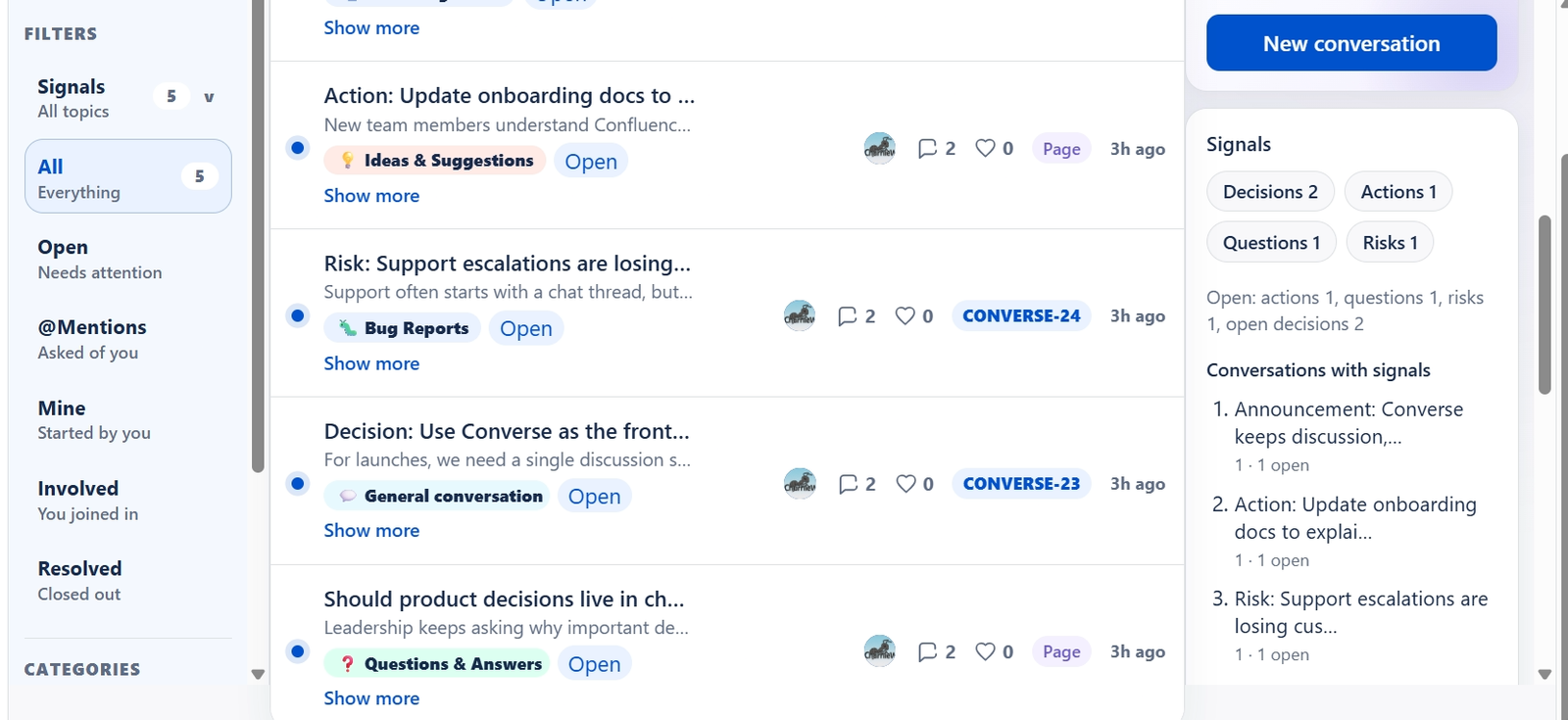
The hub is designed to help your find the conversations you need fast. You can filter based on Signals created, the status of the conversations, the ones that mention you, your own, etc.
The center panel of the hub holds the conversations. Their cards hold the title, a sneak preview, category, status, likes, and have a link to the confluence page hosting the conversation.
Click on the title to make that conversation appear in the right panel.
That panel has the selection conversation card (more content detail), a top active topics card, a dashboard of the hub stats, a Signals dashboard, and definitions of the signals.