

6. Add a client and link projects
Feature summary
A client is who you bill. This can be customers in and outside of your company. Linking a Jira project tells LedgerLine that the time in that space belongs to this client. One client can have several projects. LedgerLine only tracks projects you add. Other Jira projects stay out of the dashboard, reports, and invoices.
When to use it
Use this as step 6, after an LL Manager exists. You need at least one client with at least one linked project before rates and project setup mean anything.
How to use it
Open Clients.
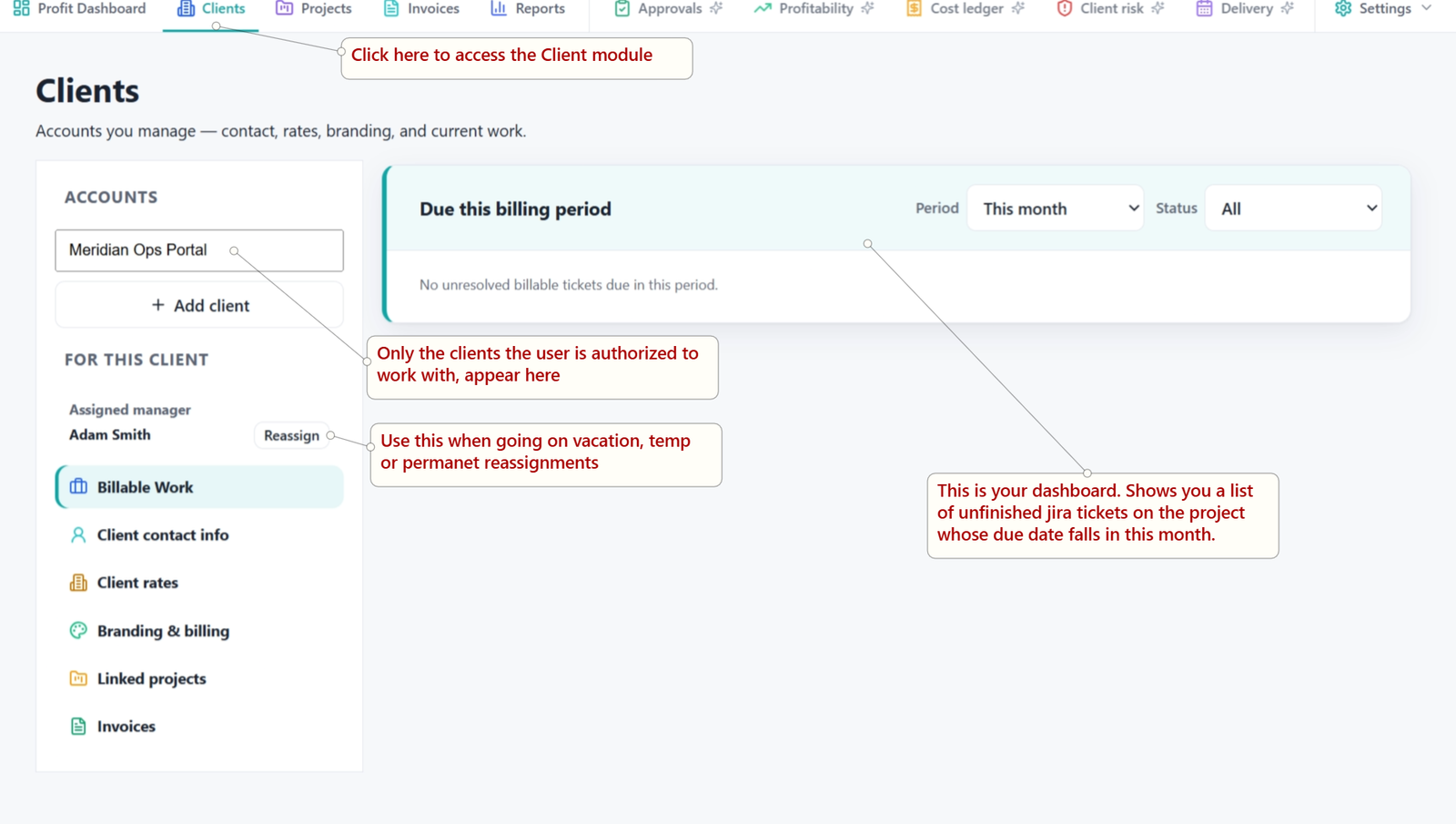
Choose Add client.
Enter the client name and the contact details you want on invoices.
Link the Jira projects that deliver this client's work.
Choose Save client.
The linked projects appear on Projects and are marked Needs setup until you review them. That review is a later step. Do it after the client's rates exist, so the project can point at the right letterhead and tax.
Screenshots
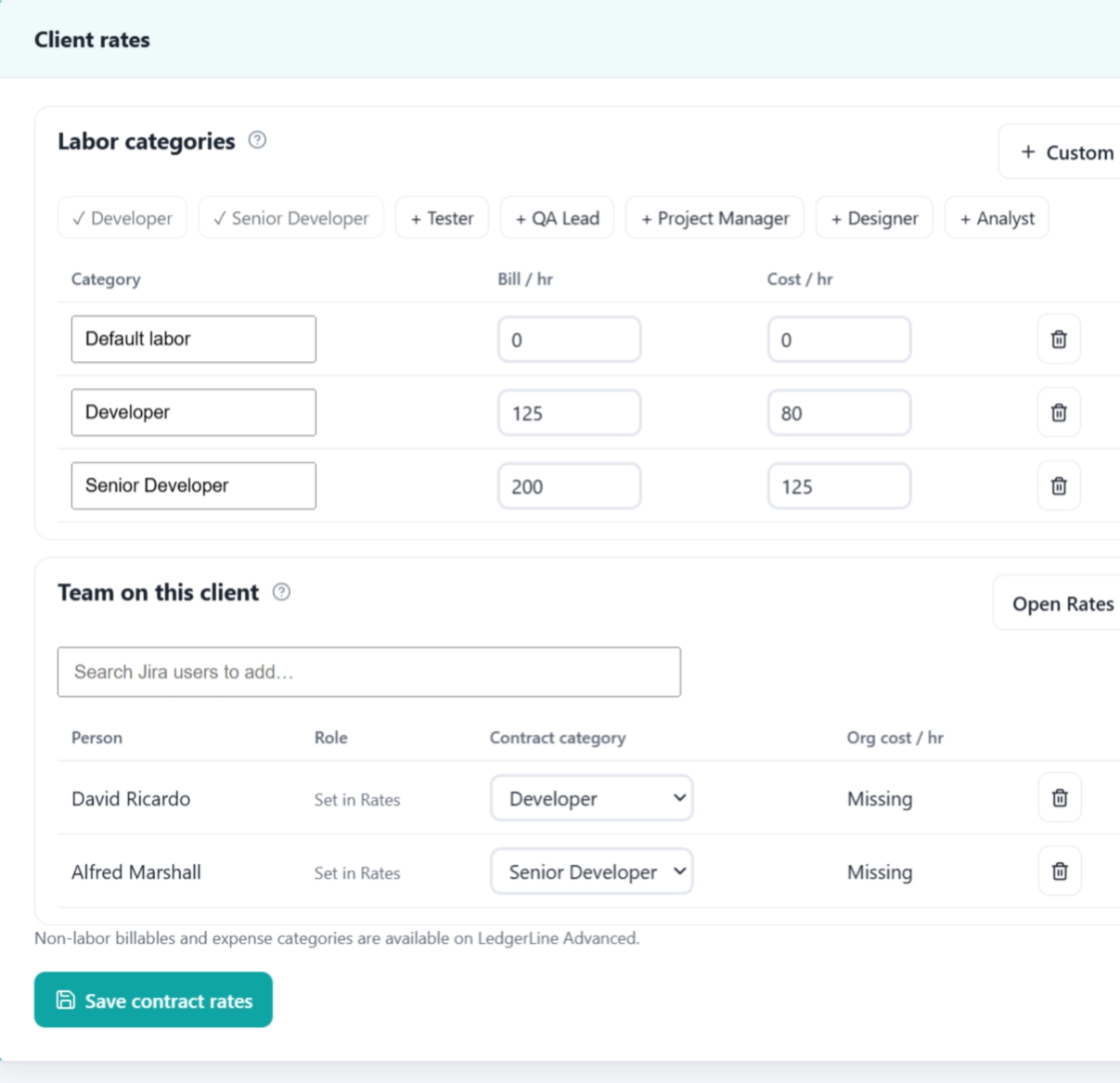
Sample of what client rates looks like.
Related
Next: Set client contract rates.