
8. Finish each project
Feature summary
Projects in the main menu is where you finish delivery settings for every linked Jira project. A client with three projects is configured three times, here, not by hunting through the client and through Settings.
A project marked Needs setup is not finished. The first-time guide stays open until every linked project is reviewed and at least one project exists.
When to use it
Use this as step 8, after the client and the labor categories exist.
How to use it
Open Projects.
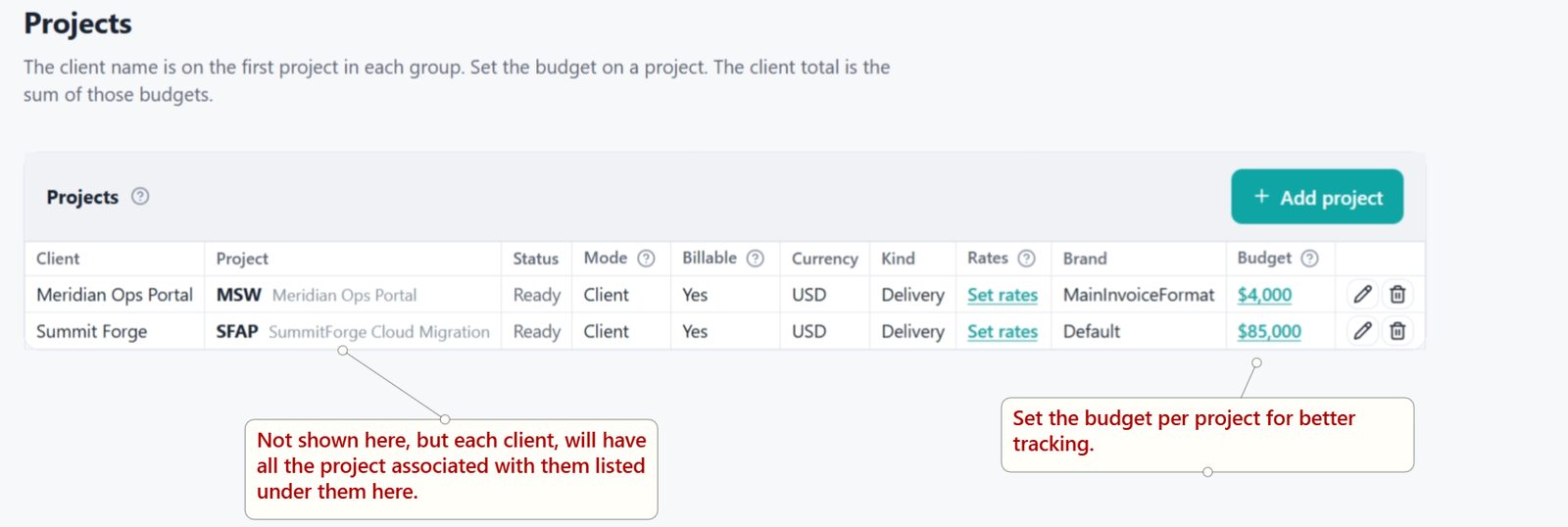
Find the row marked Needs setup, or choose Add project if you are adding a space that was not linked from a client.
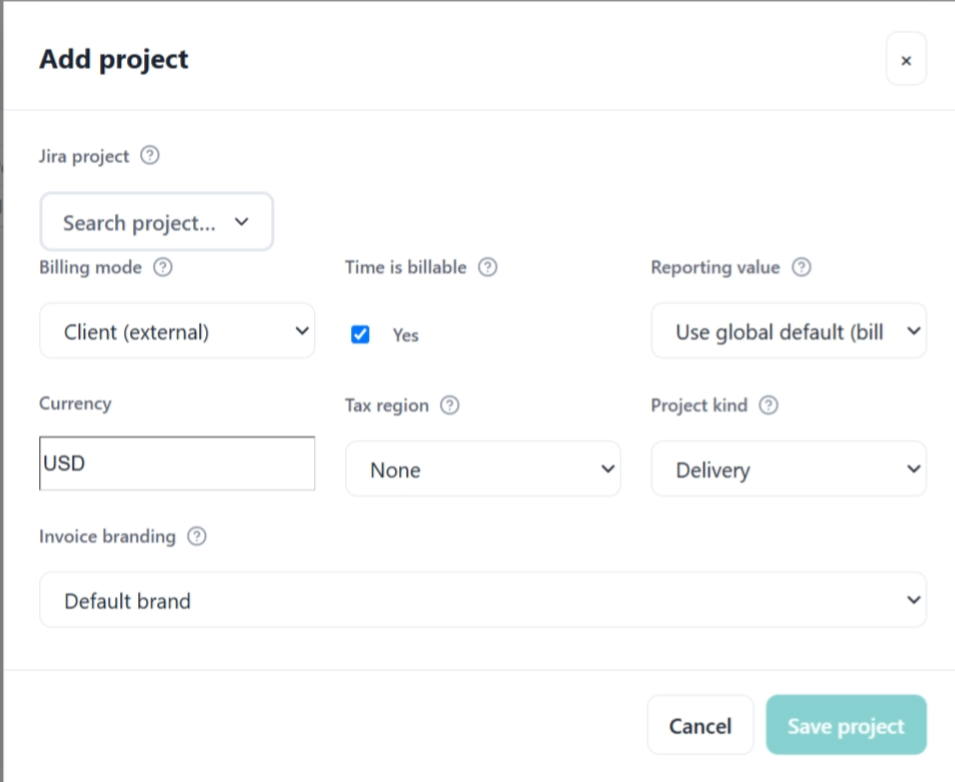
Open the project.
Set Billing mode.
Client — you invoice an external customer.
Internal — another department pays, for example HR paying IT.
Set Time is billable. On means hours can produce a bill amount. Off means you are tracking cost only. If WorkPulse is installed, its billable flag on the worklog still wins.
Set Reporting value if this project should roll up differently from the company default.
Set Currency for this project.
Set Tax region if this project's invoices should add tax. Add the region first under Settings → Invoicing if the list is empty.
Set Project kind. Delivery is client work. Other kinds feed Advanced profitability.
Choose the Invoice branding letterhead for this project's PDFs.
Save the project. Needs setup clears when that save succeeds.
Open the project again and add the team. Search for each person and add them. Use Remove to take someone off. LedgerLine does not import the Jira project's roles or groups.
People already on a project from an older import stay until you remove them.