
Invoices
Feature summary
An invoice is built from billable time in a period, saved as a draft, then handed to accounting as a Jira ticket. LedgerLine does not email the customer. When accounting finishes that ticket, LedgerLine marks the invoice sent. A person marks it paid.
When to use it
Use it after the client has labor categories, the project is finished, and time has been logged in Jira for the period you want to bill.
How to use it
Open Invoices. People who can create invoices, ship invoices, or administer LedgerLine can open this page.
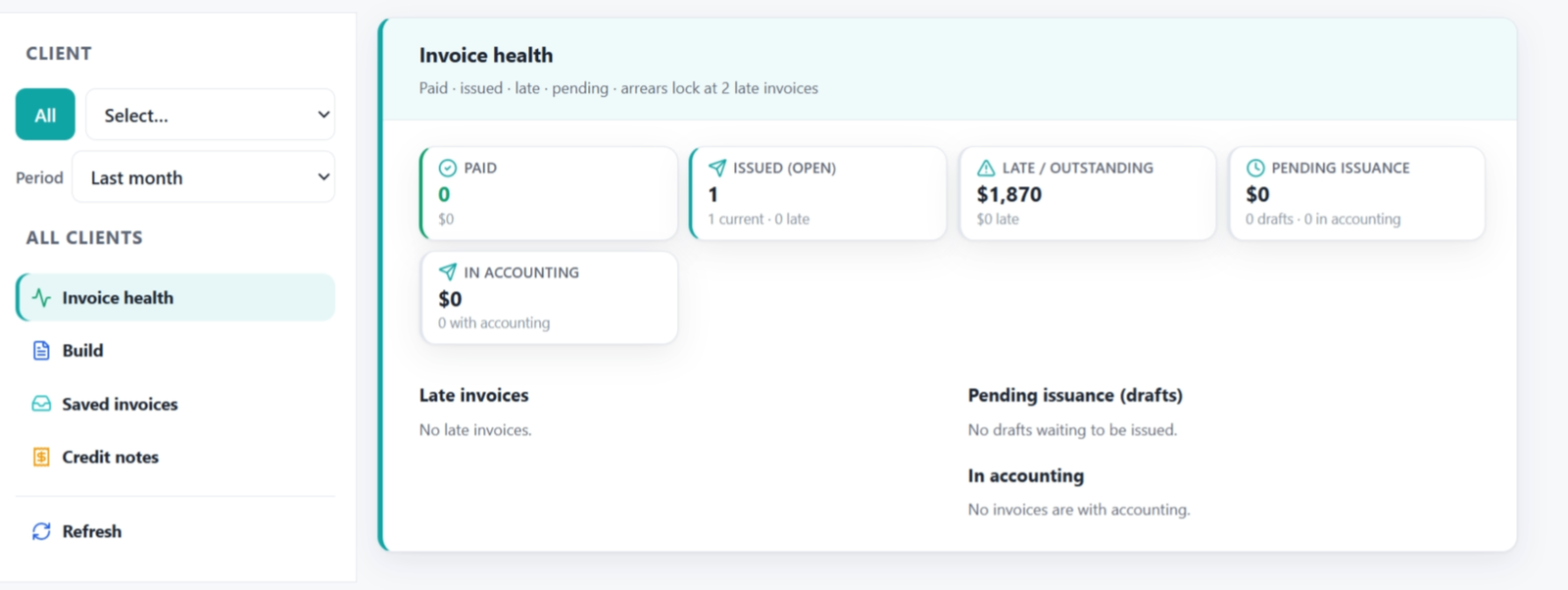
Choose Build.
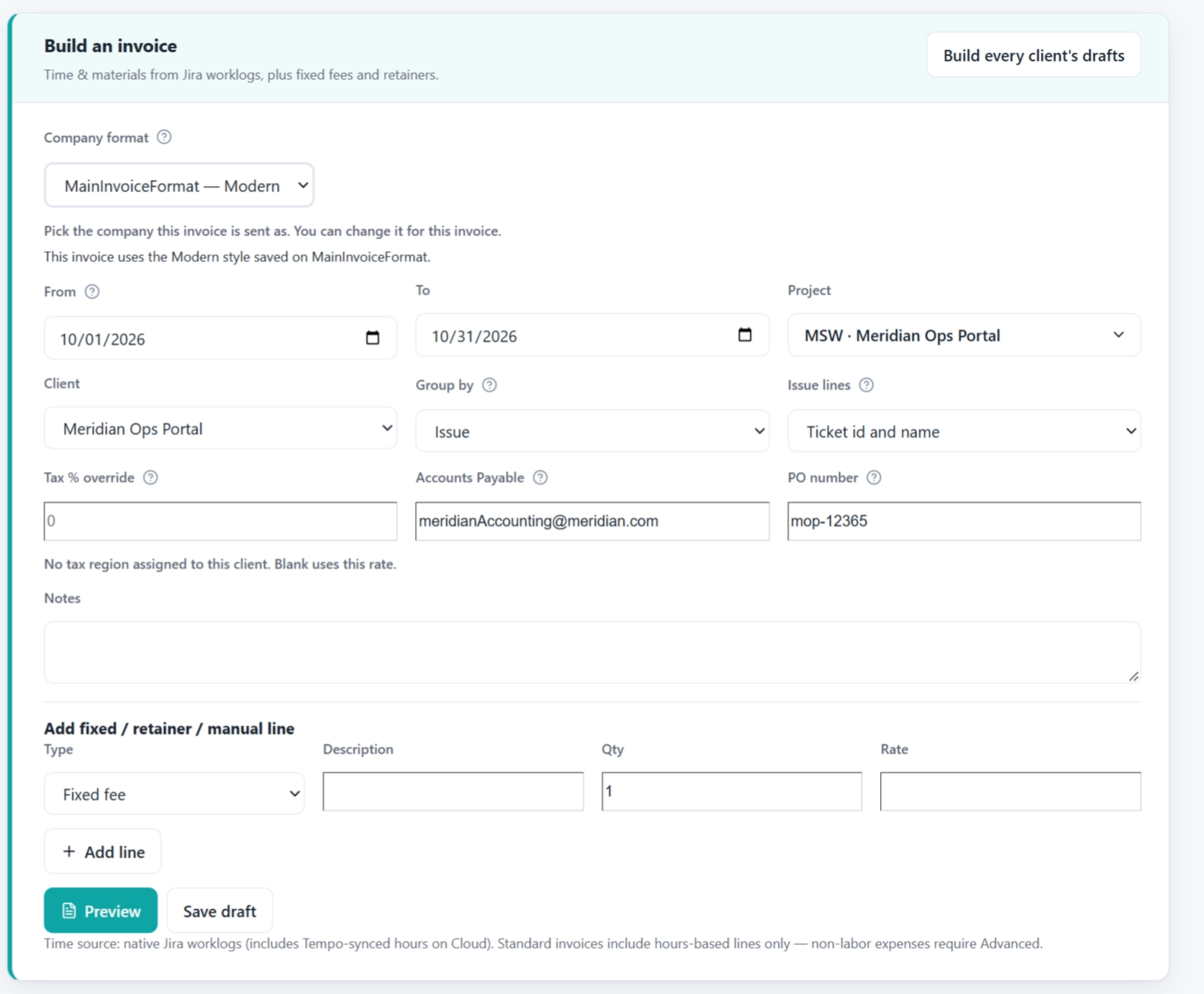
Pick the client, the project, and the period.
Review the preview. Lines come from worklogs times the matching labor category. You can add an extra line, such as a fixed fee, before you save.
Choose Save draft. The invoice number is assigned and the status is Draft.
Set the accounting space once, if you have not: Settings → Invoicing → Account invoicing. Enter the Jira project key where accounting works. Save.
On the saved invoice, choose Send to Account Invoicing. If no accounting space is set, the button says Cover letter and you copy the letter yourself.
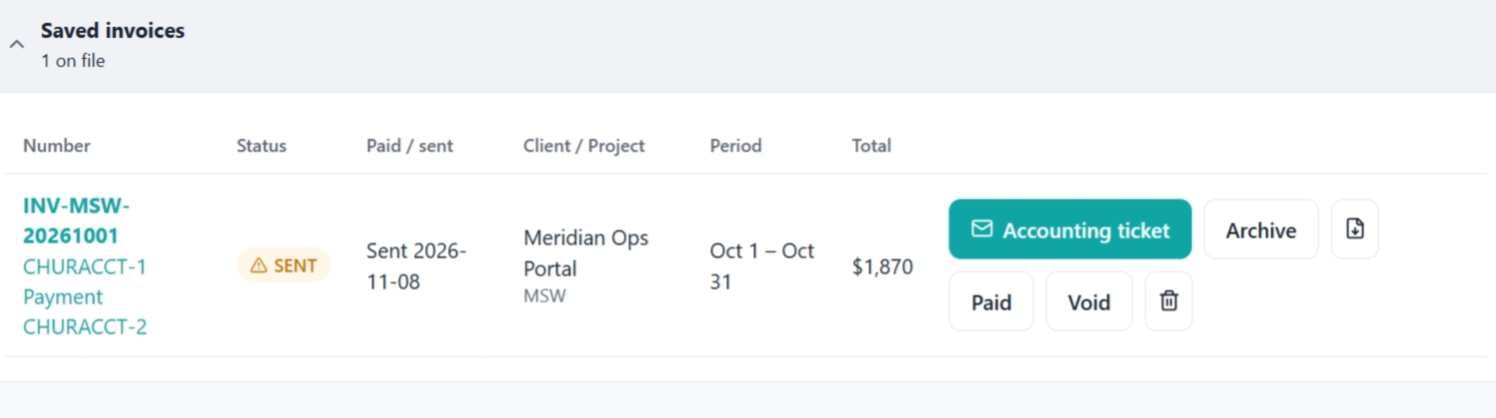
Confirm in the dialog. LedgerLine creates one unassigned Jira task in that space, attaches the PDF, and sets the invoice to In accounting. It does not create a second ticket if you open the button again. The button then says Accounting ticket and opens the existing issue.
Accounting moves that ticket to a status in the Done category. LedgerLine marks the invoice Sent and records the sent date. Reopening the ticket does not move it back.
If you must record sent without waiting for the ticket, use Mark sent only in the same dialog. That is a manual exception.
When the money arrives, open the invoice and choose Paid. Enter the payment reference if you have one. Only someone with Ship invoices can mark it paid. Nothing in LedgerLine watches a bank feed.
Use Refresh at the bottom of the Invoices menu to reload saved invoices without reloading Jira.
If QuickBooks or Xero is connected, the saved invoice also shows Send to QuickBooks or Send to Xero. That creates the invoice, or a credit note, in those books. LedgerLine's status does not change. A second click says Open QuickBooks or Open Xero and opens the same books invoice. The buttons stay hidden until an LL Administrator connects that company. The daily jobs do not press them for you.
Invoice health on the same page groups drafts, invoices in accounting, sent invoices, and paid invoices. Pending issuance includes both drafts and invoices already in accounting, so the amount does not disappear when you hand the invoice off.
Void leaves the invoice out of receivables and frees its worklogs so they can be billed again.
Related
Status names are listed in Reference.